
Google Analytics 4 can now (since May 2026) identify traffic arriving from AI assistants such as ChatGPT, Gemini, Claude and other recognised AI platforms. GA4 groups this traffic into its AI Assistant channel, but the standard Traffic Acquisition report does not make it especially convenient to see which individual AI systems are sending visitors.
In this guide, I’ll show you how to create a permanent AI Assistant Traffic report in GA4, showing you the detail of each AI traffic source.
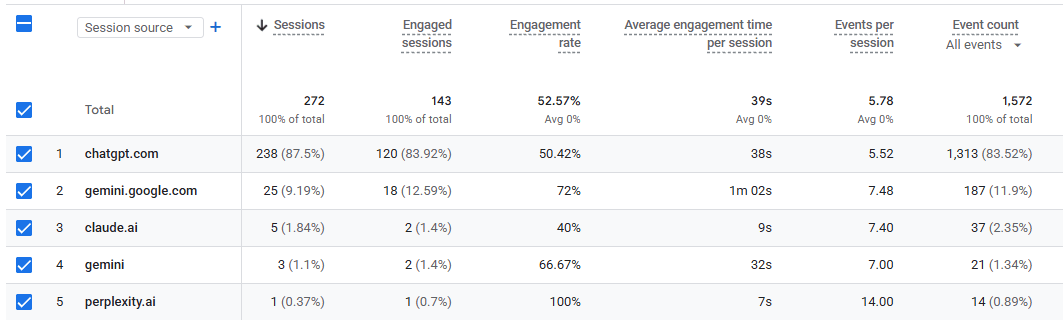
Once it is set up, you can access it directly from your Reports menu and quickly see which AI platforms are sending traffic, how many sessions they generate and how those visitors engage with your website.
More people are using tools such as ChatGPT, Gemini, Claude and Perplexity to research products, services and businesses.
If one of those AI assistants recommends or links to your website, you naturally want to know what happens next.
GA4 can help you answer questions such as:
The standard Traffic acquisition report already includes an AI Assistant channel. The problem is that this initially groups the traffic together rather than giving you the most useful permanent view of the individual sources.
You could filter and manipulate the standard report, but doing that every time you want to check AI traffic is unnecessarily awkward.
A better solution is to create a dedicated report once and add it to your normal GA4 navigation.
The video above takes you through the whole process on screen. The basic steps are as follows.
Open Reports in Google Analytics and select Library at the bottom of the Reports navigation.
You need Editor or Administrator access to create and customise reports.
Select:
Create new report → Create detail report
Choose the Traffic acquisition template as your starting point.
Using an existing template saves you from having to build all of the report settings from scratch. This is also the route used in the video.
Within Dimensions, make:
Session source
your default dimension.
This is the important part because it allows the report to split the AI Assistant channel into the individual sources sending traffic to your website.
Depending on the traffic your site receives, you may therefore see sources associated with services such as ChatGPT, Gemini, Claude, Perplexity and others.
GA4 allows you to select which dimensions are available in a custom detail report and choose which one should appear by default.
You can then decide what information you want alongside each AI source.
Useful metrics could include:
Sessions, Engaged sessions, Engagement rate, Average engagement time, Key events and Revenue where applicable.
The objective is not simply to count AI visits. You want to start understanding whether visitors arriving through AI assistants are actually useful visitors.
In the video, the resulting report shows each AI source alongside its sessions and other information.
Add a report filter using:
Dimension: Session default channel group
Match type: Exactly matches
Value: AI Assistant
Apply the filter.
This removes Organic Search, Paid Search, Direct, Referral and the other traffic channels, leaving you with a report specifically about AI Assistant traffic.
Google defines Session default channel group as the channel through which users arrived when they began a session. Its AI Assistant classification is applied when the traffic matches Google’s recognised AI-assistant rules.
Give it a meaningful name such as:
AI Assistant Traffic
and save it.
The report will now exist in your GA4 Report Library.
The final step makes the report much easier to use in future.
Return to Reports → Library and find your published Life cycle collection.
Edit that collection and find your newly created AI Assistant Traffic report.
Drag it into the Acquisition section. I would place it directly underneath Traffic acquisition.
Save the collection.
Google allows custom detail reports to be added to published collections so that they appear permanently in the main Reports navigation.
The process shown in the video is simply to locate the report, drag it into the Acquisition area and save it back to the current collection.
You now have a permanent AI traffic report
Once that has been done, you can simply open:
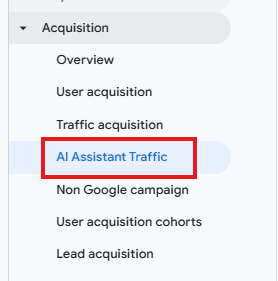
Reports → Acquisition → AI Assistant Traffic
whenever you want to check your AI referral traffic.
You can change the date range and the report will show the AI sources GA4 has identified for that period. That makes it much easier to monitor whether traffic from ChatGPT, Gemini, Claude, Perplexity and other AI assistants is growing over time.
You can also customise the report further. For example, adding Landing page + query string as another available dimension can help you investigate which pages AI users are arriving on.
That starts to make the data much more actionable. You are no longer simply asking whether ChatGPT sends you traffic; you can start looking at which content is attracting AI referrals and whether those visitors subsequently engage or convert.
This report should not be interpreted as showing all visitors whose journey was influenced by AI.
It shows traffic that GA4 can identify as having arrived from a recognised AI assistant.
There are two particularly important limitations.
Firstly, an AI app or browser may not always pass sufficient referral information for GA4 to identify the source.
Secondly, Google explicitly states that its AI Assistant channel does not include traffic from Google AI Overviews or Google AI Mode.
That’s a bit odd but it will likely change over time.
So think of this as:
“AI assistant referral traffic GA4 can identify”
rather than:
“every visit generated by AI”.
Despite that limitation, it gives you a very useful benchmark. And as AI-driven discovery continues to develop, having this report permanently available in GA4 gives you a simple way to see whether these sources are starting to contribute meaningful traffic, enquiries or revenue to your website.