
If you are seeing the gclid instead of your Google Ads in the keyword section of your data like this …

… then you will need to follow the guidance on this page.
First, please makes sure that your Google Ads account is already linked to your Google Analytics, which helps with tracking data effectively.
To automatically track keyword phrases from Google Ads, you will need to modify your setup within your Google Ads account.
The good news is that it’s fast to do (it takes a few seconds per campaign).
This will allow you to see all visitors from Google Ads, sometimes including the identifiable company they came from, the keyword phrase that brought them in, and what the visitor looked at page by page. Below you can see an example of this.
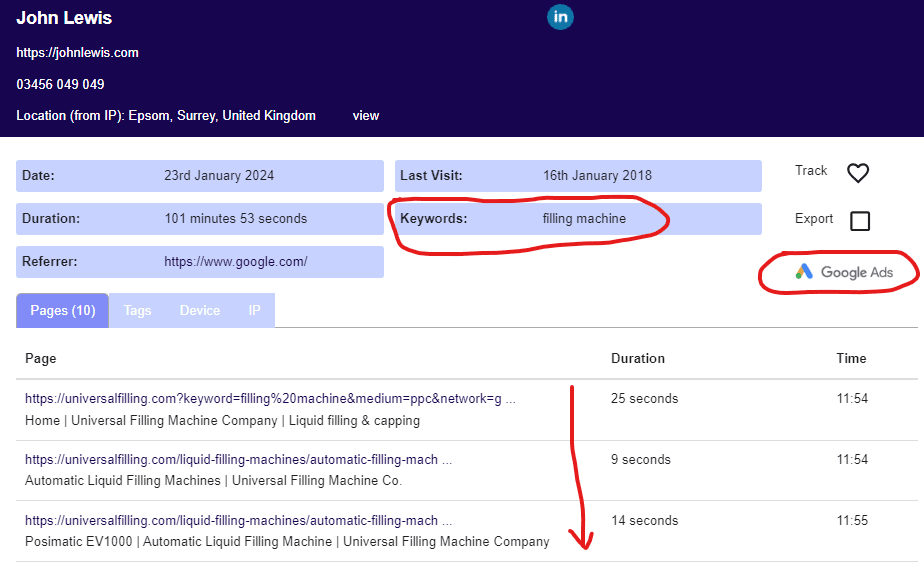
Here’s how to set this up step by step for each individual Google Ads campaign that you have …
Within your Google Ads, select one of your campaigns and then click on Campaign Settings.

Click on Additional settings.
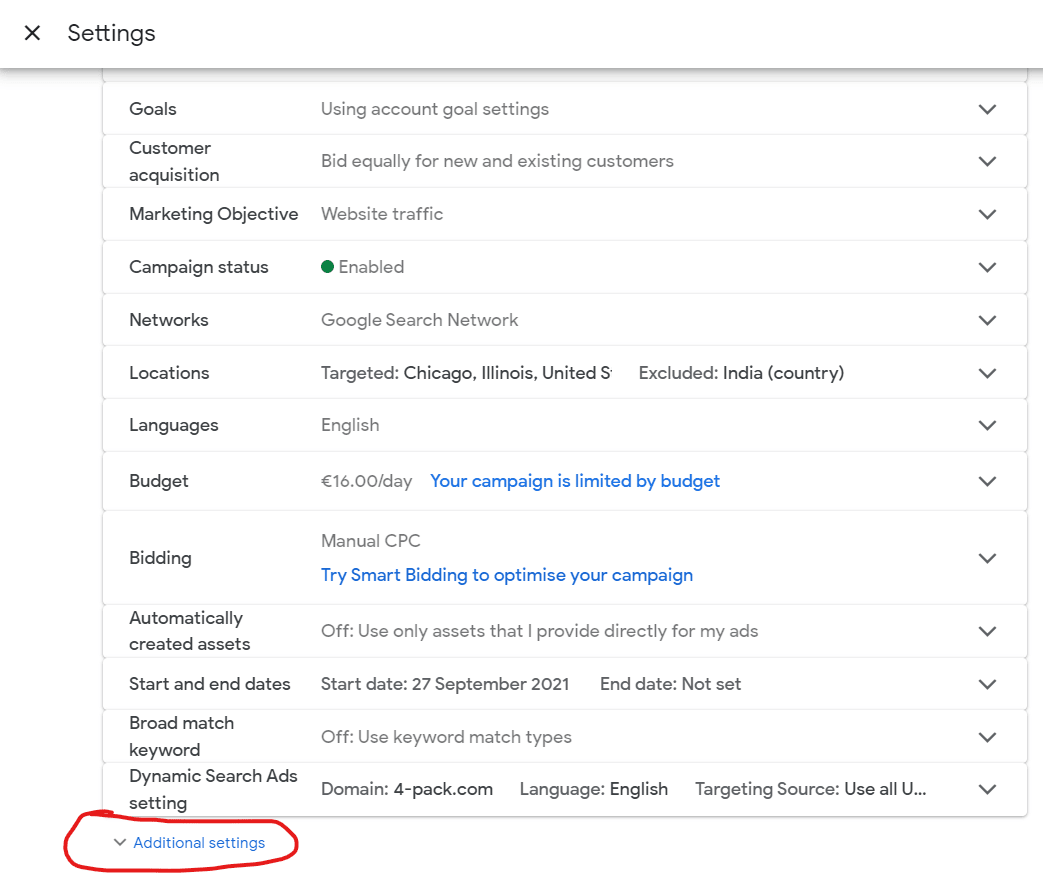
Click on Campaign URL options.
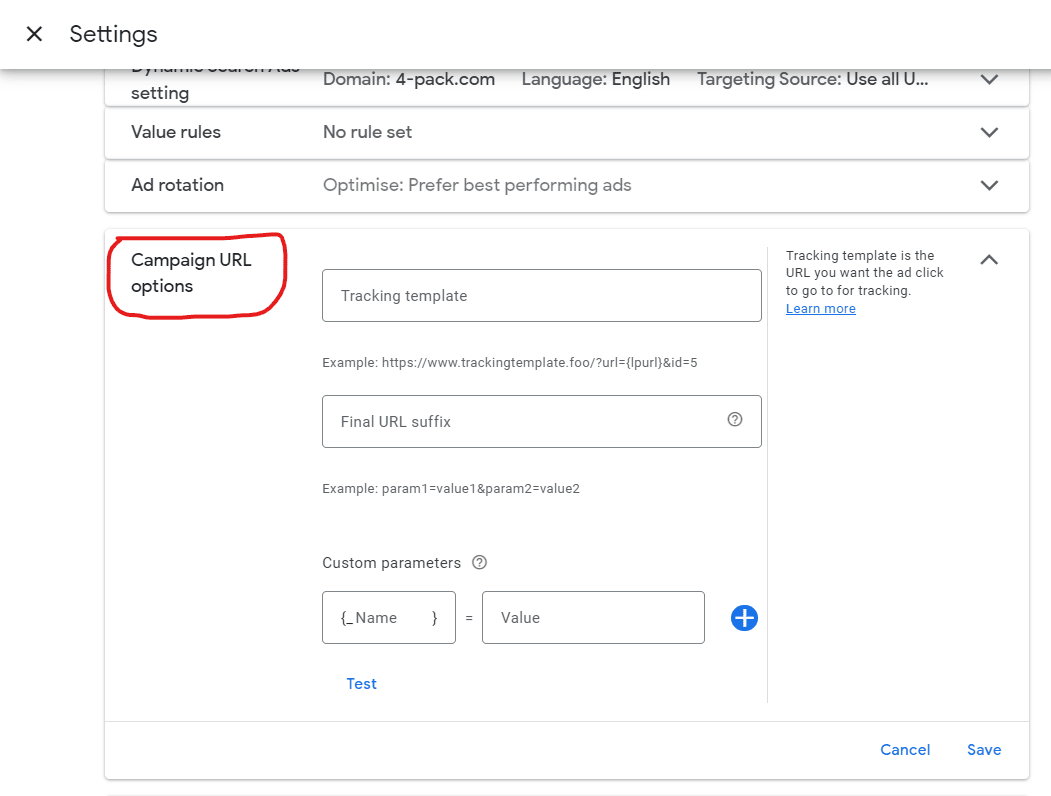
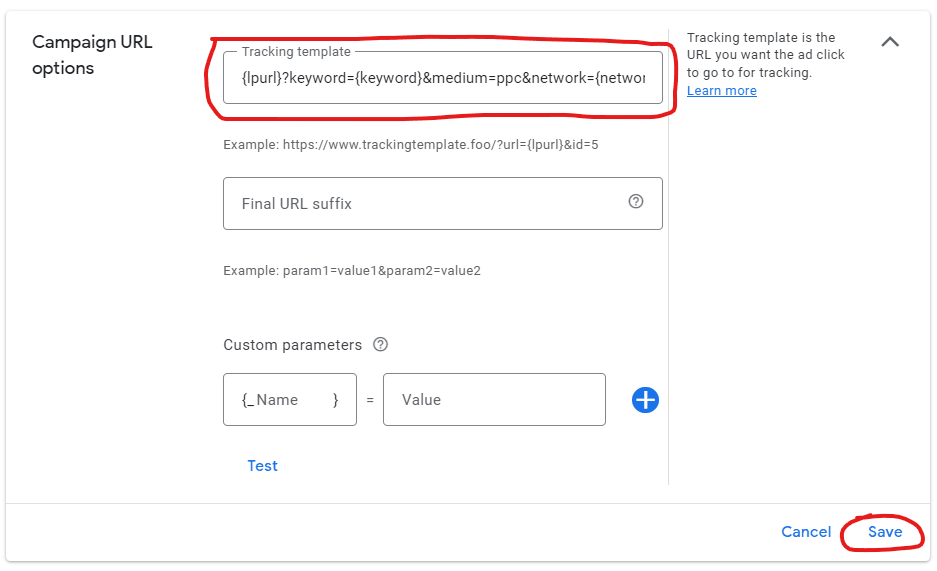
Within the Tracking template field, copy and paste this:
{lpurl}?keyword={keyword}&medium=ppc&network={network}
Then click on Save to save your changes.
Don’t put in any of the custom parameters unless you have them already in your campaign.
Leave it for a day (you can do this faster if you have regular PPC traffic and want to watch for your new visitors) and then look at your visitors data for the time after you made the change, focusing on Google Ads visitors.
You should see that you’re now seeing keywords for all new Google Ads visitors since you made the change.
If it’s not, then please do get in contact for some help.